You are here: User Help > Utilities > Barcoding Location Assignments > Preparing to Use the Barcoding System

Preparing to Use the Barcoding System

Before you can use JustWare's barcoding system, there are a number of things that must be considered.

JustWare is designed to work with any ASCII Extended Code 3 of 9 enabled barcode scanner. Scanners must be able to read a start character of $A as an Insert key and an end character of $Z as an F12 key. Agencies wishing to implement the barcode scanning functionality in JustWare are responsible for the setup of scanners.

Note: Barcode scanning must be enabled in JustWare before attempting to use this functionality. If barcode scanning is not enabled, scanned barcodes will be interpreted as a string of numbers and text, and one of the following will take place:
Caution: If text is selected and barcoding is not enabled, scanning a barcode will overwrite the text with a string of numbers and text.
  1. From the menu toolbar, click Tools | Settings | Barcode Settings.
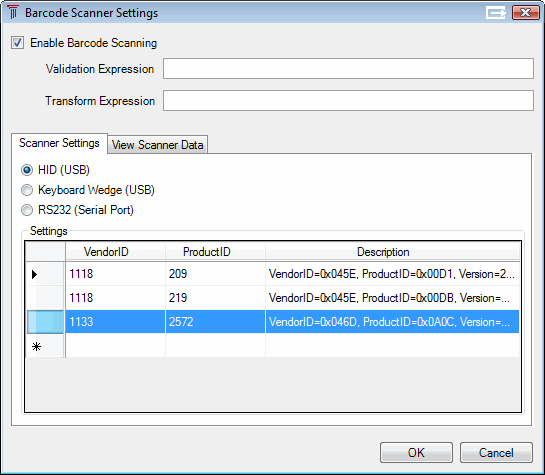
    The Barcode Scanner Settings dialog box appears.
  2. Check Enable Barcode Scanning.
  3. Optional: Complete the Validation Expression field.
    Note: To determine the necessity for completing this field and the proper expression to use, contact your JustWare Administrator. An example of this field's use is to read the *C2-1* JustWare 4.6 barcode format and have it recognized in JustWare 5.11.2. The expression to use is the following: (C[0-9]+-[0-9]+)|(N[0-9]+). This field requires a regular expression to be used for getting a Boolean result as to whether or not data received is in the correct format to be accepted. Non-compliant messages will be ignored.
  4. Optional: Complete the Transform Expression field.
    Note: To determine the necessity for completing this field and the proper expression to use, contact your JustWare Administrator. An example of this field's use is to read the *C2-1* JustWare 4.6 barcode format and have it recognized in JustWare 5.11.2. The expression to use is the following: ([NC])|([0-9]$). This field requires a regular expression to be used for transforming accepted messages before they are processed.
  5. In the Scanner Settings tab, select the type of scanner interface you are using:
    • HID (USB): This is a Human Interface Device.
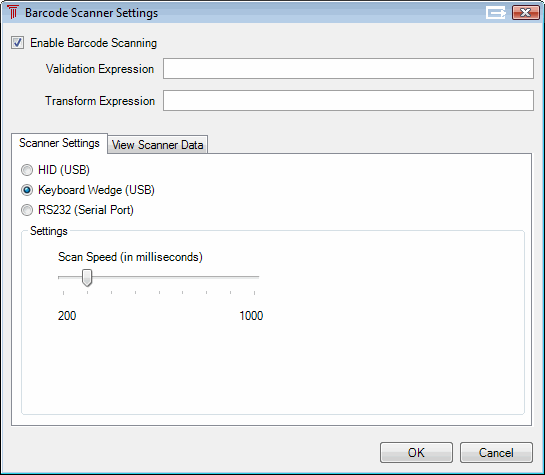
    • Keyboard Wedge (USB): This is a keyboard emulation interface.
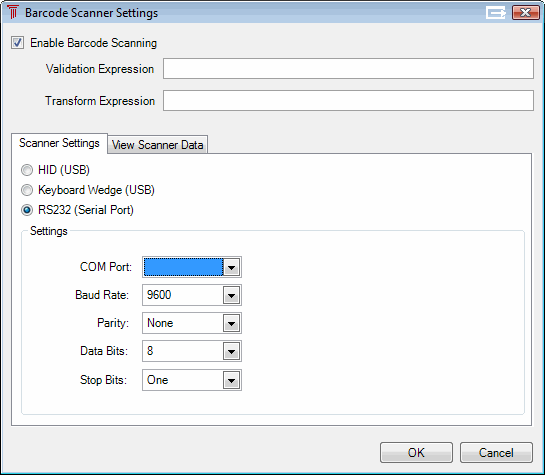
    • RS232 (Serial Port)
  6. Depending on which scanner interface type you selected, you will have different fields to complete. Click the name of the interface for configuration details.


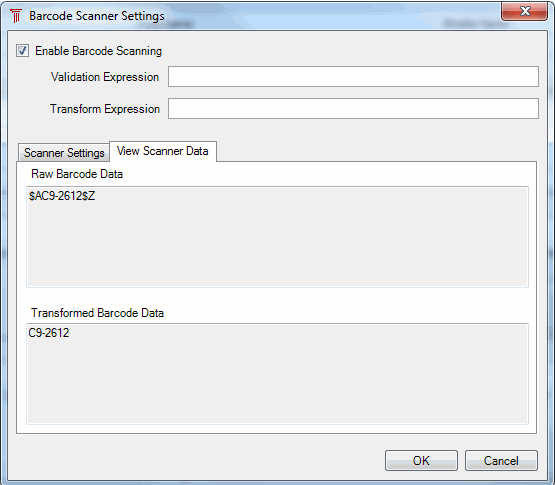
  7. Click on the View Scanner Data tab. Use your scanner on a barcode. If the settings are correct, you should see the original data from the barcode (including the $A and $Z characters) in the Raw Barcode Data field and the data without the special characters in the Transformed Barcode Data field. If these fields do not populate correctly, return to the Scanner Settings tab and change your settings.

  8. Click the OK button.
  9. Install the barcode font.

    Caution: Barcodes will not appear on name and case reports unless the barcode font is installed.

    1. Open the JustWare Maintenance Console by clicking Start | Programs | New Dawn Technologies, Inc. | JustWare Maintenance Console.
    2. Navigate to the SmartClients | Extra JustWare Settings tab.
    3. Select the Deploy Barcode Font box. Click File | Save or click the Save icon in the toolbar.
  10. If necessary, create new barcodes for documents created in JustWare 4.6. Barcodes created in JustWare 4.6 do not contain the special encoded characters required to be scanned into JustWare 5.0. You will have to create new barcodes for all JustWare 4.6 documents if you want to scan them into JustWare 5.0.